Unknown's avatar

Windows 10 and Missing MS Office? Try Libre Office!

If you have a Windows 10 computer or have upgraded to Windows 10, you may notice that MS Office, which contains such programs as MS Word and Excel, among others, as well as MS Word Starter, isn’t quite as accessible as it was on earlier versions of Windows. Oh, it may be there, but now you may have to pay for a subscription to use it on Windows 10.

Is there a way around this?

Yes, there is! Libre Office is the answer!

It has just about everything Windows Office has, and is entirely free to download. In fact, I’ve not only downloaded it onto my current Windows 10 computer, but also on my spare computer which is running Windows 7 and already has Windows MS Word Starter and Excel Starter on it (The free versions, of course!).

So how good is Libre Office? Well, it does save things in its own format. Word documents are saved as .odt documents by default, but, you can save them as .docx documents (for word docs), or as other types of documents and, there’s a special “Export to pdf” button, as well, which saves a separate copy as a pdf file, which is accessible for adobe readers. Also, it will open your word documents as well.

Then, when you open Libre Office, it will display your most recent documents that you worked on.

In addition, Libre Office also has Excel type spreadsheets, drawing capability, and a presentation program.

And, while donations are accepted, (I did donate $5), the program is entirely free to download and you aren’t required to donate anything!

So, where to get Libre Office? You can visit www.libreoffice.org and download it from there.

It’s really a great program and I still haven’t explored it completely, but I think it’s well worth downloading. As a matter of fact, this post, as well as my last two or three, were all written using Libre Office!

Happy computing!

If you like what you’ve read here, please let others know of this post, blog, and site.

And thanks for reading!  🙂

Unknown's avatar

You’ve Been Hacked!: What Not To Do!

Recently, someone I know saw a message pop-up on their computer saying that they’d been hacked. The message had a phone number and said to call the number right away. So, the person did and gave them all kinds of information.

The trouble was, the pop-up was a scam and not from any legitimate company or source!

This, and other types of scams are appearing now. Another type is where you get a phone call, usually saying the same thing or similar, that your computer has been hacked or is causing some sort of problem.

So, how to protect yourself? First, the pop-ups. Just as with phishing e-mails, these pop-ups will claim to be from a legitimate source, like Microsoft or your bank. They can really scare you at first, but don’t panic and don’t call any numbers listed or go to any websites listed in the pop-up! Chances are that any phone number or website posted on the pop-up will be to a “scam artist” or “center” where they’ll take your information and use it for nefarious purposes, or, in the case of a website listed, you computer will really be hacked if you go there! And, neither Microsoft nor your bank or other institutions will contact you via pop-ups on your computer if there is a problem.

If you’re really not sure and the pop-up scares you into thinking there is a problem, do not call the number listed on the pop-up! And don’t visit any websites or send any emails to email addresses listed on the pop-up either! If the pop-up claims to be from Microsoft or your computer manufacturer, call or contact Microsoft or your computer manufacturer, directly, through their legitimate numbers that came with your computer package!

If it claims to be from your bank or an institution or company you know and have dealings with, do the same thing, that is, call them directly through the numbers on material you have from them or through the phone book or their website. Don’t use any numbers or go to any websites listed on the pop-up!

If it’s from a source you don’t recognize, do note it, but otherwise ignore it, as it may just be a front name. However, if you have an anti-virus program, I would do a scan of your computer, just to be sure. And see if the pop-up comes up again in the future. If it does, especially if it does so often, it may be that you do have a virus or other malware. Here, I would contact my local computer store or a computer security expert and not any numbers or websites or email addresses shown in the pop-up.

As for phone calls, you can often recognize these if you have caller id. They will often be numbers that don’t look like a normal phone number, such as “86483”. If you do answer, they will often claim to be from a Microsoft call center and will claim that they need info from you about your computer, usually passwords you use, because of some problem. And, if pressed, they often cannot give you specifics of the problem. Again, they are a complete scam. And, they could claim to be from your bank or other important institution you deal with, like the IRS.

I know people who’ve gotten these calls, too, and I did get one supposedly from Microsoft. I knew it was a scam, but was curious what they would say when pressed for specifics, but they were vague and insisted that, “it was my computer” and wouldn’t say more than that. Needless to say, I never gave, nor intended to give, any information whatsoever, even before I answered the call. And if the caller is threatening, you know it’s a scam. Companies, and government institutions will not contact you in this manner, nor are they likely to be threatening over the phone.

Again, here, if you’re not sure, don’t give any information over the phone to the caller, nor should you call any numbers left from a voice message.. Hang up and call the institution or company itself, using the numbers you already have for them and they’ll tell you if there’s a problem. Most likely there isn’t and they’ll let you know that it was a scammer who called you.

You may want to report it to the police as well, though they won’t really be able to do anything except take it as a heads up if it’s a new scam hitting the area. However, if you do fall for the scam, report it to the police, especially if the scammer starts harassing you or shows up in person!

So, if you get an “urgent message” in the form of a pop-up, phone call, or of course, an e-mail, don’t panic, don’t call or contact using numbers or websites or e-mail addresses listed in the message, (and don’t reply to said e-mail either!) and contact the source company directly using their legitimate numbers, websites, or email addresses, not those listed on the message you received!

Be safe and happy computing! Happy 100th posting! Merry Christmas and a

Happy New Year, too!

If you like what you’ve read here, please let others know of this post, blog, and site!

And thanks for reading! 🙂

Unknown's avatar

New Computer? Welcome to Windows 10

Well, it’s been a busy month for me, so I haven’t written for a while now. One of the things that kept me busy was a computer problem with my main computer and, it turned out that I had to get a replacement. So I did.

My new computer, with which I am writing this post, comes with Windows 10, the newest Windows operating system. My old computer, as well as my small backup computer, run Windows 7, which, for me, is a very good and useful operating system.

I’d heard a lot of negative views of Windows 10 but of course, you don’t really know until you’ve tried it, and my cousin, who liked Windows 7 over Vista when Windows 7 came out and suggested I install it on my computer, also likes Windows 10 and, when I used her computer on a recent visit, Windows 10 was easy to use. Plus, as it is a popular system, it is easy to get a computer repair when needed.

Now, I did do some research and talked to some computer people before I bought my new computer and they all basically said that Windows 10 is a better and more secure operating system than either Windows 7 or 8. But they did say that Windows 10 was designed with touch screen computers in mind and that it’s better to not take the free upgrade to Windows 10 on a Windows 7 or 8 computer unless it has a touchscreen, otherwise, Windows 10 can be frustrating. Also, I have gotten the impression that the upgraded versions of Windows 10 on Windows 7 and 8 computers have had more problems than the versions built-in on new computers, perhaps because the new computers were made as Windows 10 computers from the start.

My impressions? Well, I’ve only had my computer for about a week now, but I do find that Windows 10 has not been the monster its detractors claim, at least not so far. Also, the computer people I’ve talked to all said that Microsoft will address any bugs that come up with Windows 10 much faster as Windows 10 is their top baby right now, and, if Microsoft really means for Windows 10 to be its last and ultimate/permanent operating system, they’re likely to pay a lot of attention to its maintenance and workability.

I have found the touchscreen useful at times but I’ve had no problems using my trackball in most situations, and I think that it may not be as frustrating having Windows 10 on a non-touch screen computer as I was told.

Windows 10 Start Menu. 11/27/2015

Windows 10 Start Menu. 11/27/2015

The start button looks different and the start menu scrolls up when the start button is clicked on. And it includes thumbnails of different sites and features as well, which may be more familiar to those users coming from Windows 8 than to those coming from a Windows 7 computer.

Also, I do find that some programs work and look a little different on Windows 10, such as the folder icons in Windows Explorer, and importing pictures from an SD card. Some of these aspects of Windows 10 will take getting used to.

Then there’s Windows Edge, the replacement browser for Internet Explorer which was on earlier versions of Windows, and Cortana, the voice of Windows 10.

Windows Edge seems quite functional from what little I’ve used it, since I installed Google Chrome right away and use Chrome as my default browser, with Firefox as a backup. But I do understand that it is more secure and functional than the old Internet Explorer.

As for Cortana, I really haven’t tried it out yet and may take some figuring out.

One not so good feature is that, while notepad and wordpad are available on Windows 10, you have to purchase Windows Office suite, as there no longer is Office Starter, if you want to have more ability to edit documents or create Excel type spreadsheets.

However, in researching, I did learn of several free software imitations of Windows office that are just as good. One of these is Libre Office, which I’ve downloaded from the website, https://www.libreoffice.org/, and am using to write this post. And it is quite impressive so far.

If you used Photo Gallery in the past with earlier versions of Windows, you can use it with Windows 10, too, but you have to go and get it from Microsoft. But it does work with Windows 10 and is better than “Photos”, the Windows 10 default photo manager.

There’s still a lot for me to check out on this computer and with Windows 10, but so far, it’s been positive and I’m sure I’ll get used to its way, just as I did with Windows 7 when I switched over from Windows XP.

So, don’t be afraid of Windows 10.

Happy computing!

If you like what you’ve read here, please let others know of this post, blog, and site!

And thanks for reading!  🙂

Unknown's avatar

So, How Do I Like My Smart Phone After 6 Months?

Well, I’ve had my Smart Phone for 6 months now. It’s my first. So, how do I like it, and smart phones in general?

I have to say, so far, so good! And, as a matter of fact, I’ve gotten used to what my phone can do for me now.

First, and probably most important, are the apps that I can get, for free. Yes, there are some you have to pay for, but so far, I haven’t needed those. Most companies that provide apps will provide them for free, since many of them want you to come to them or buy from them. And the free app acts as free advertising for them as well.

Apps are really great, as they can often allow easy access to finding things on the go, and comparing prices. They can also alert you.  If your favorite store is having a sudden sale, and you have their app, you may get an alert from them.

Apps can also help in monitoring information and controlling things from afar. I have an app that allows me to check to see if my burglar alarm is set, and, if it’s not, I can set it from my phone!

I also have an app for locating theaters and checking what movies are available, where they’re playing, and I can even purchase tickets, which would be waiting for me when I get there! It’s also the same with many apps for eating places, including many of your favorites!

And if I don’t know where there is?

I have Google Maps, which can mark the location and tell me how to get there, too! This came standard with my phone, and most smart phones will come with a set of pre-installed apps, such as the Google set on Android phones.

Next, I have internet access. So, I can check up on e-mails and unclutter my inbox without having to wait until I get home! I can also surf the web. And, I can also watch YouTube videos, though these will use up lots of data and memory.

So, am I one of those who is constantly texting or checking my phone? No, I’m not. While you do have to try to avoid the urge to multitask with a smart phone, (Studies show multi-tasking makes one less effective!) I’ve never been a good multitasker and I refuse to bend to the idea that one must be doing everything at once all the time or be connected all the time!

But, if I’m waiting in a doctor’s office or am in some other “waiting situation”, then yes, I may check my e-mail inbox with my phone.

And finally, there are apps for free games, which are pretty good, too. I have Chess and also Checkers apps.

So, while I didn’t feel the need for a smart phone until a possible job situation came up which required one, I’ve seen that they can do a whole lot more than a “regular” cell phone can.

And best of all, you don’t need the latest, top of the line $700 I-phone or Android phone to get these great features! I got my phone, an LG Optimus Zone 2, for only $49! To see how, check out my post, “Again, Before Jumping In, Do Your Research! (Or how I got a $149 phone for just $49!)”.

So, if you’re thinking about a smart phone, you can get them with lots of features, and cheaply, too!

Good luck with your smart phone!

If you like what you’ve read here, please let others know of this post, blog, and site!

And thanks for reading!  🙂

Unknown's avatar

Back Up Your Computers!

With this being January, it’s new year’s resolution time. People make all kinds of resolutions, most commonly to lose weight, get fit, make more money, spend less, or spend more time with the family. And all of these are good. But one that I suspect many leave out is, to back up your computers. Now, many businesses, especially the larger ones, do this all the time, but how often do you back up your home computer?

Why is this important? If your computer should have a catastrophic failure, and many do unexpectedly after a time, you could lose your data, which can include your pictures, scans, documents, favorite or bookmarked sites, music, and written or artistic documents, and anything else that you have saved on your computer.

Don’t think it can’t happen because your computer is working fine? My first computer worked fine for 7 years, then developed a wiring problem that experienced techs told me was “fatal“. So, I bought a new computer and it worked fine. For a year. Then it suddenly died and was proven to be unfix-able. So now I have my current computer.

Luckily for me, I’d worked for a company that made a point of backing up its computers and I was assigned this task, so I was in the habit of backing up my own computers from the get go. So when my own computers failed, I didn’t lose any of my data. 

How to do this, and what do you need?

You will need a portable hard  drive (HDD) or a flash drive (Often called a thumb drive) if the amount of data you have is small (128 gigabytes  is the largest I’ve heard of currently, but they are being made with higher capacities as time goes on.)

You can also use CD-R or DVD-R’s but this is much less convenient, especially with higher capacity computers.

You can also back your data up to the “cloud“, that is, online. There are services that allow you to do this. The advantages are that you can access your data from any computer anywhere in the world, so if you lose your laptop in Bangkok, you can still access your data. Also, you don’t have the worry that something like a fire will wipe out your data because both your computer and portable HDD were burned up.

However, there are disadvantages here, too. Currently, you may have to pay a fee for the service or downloading of the necessary software. And, as we all know, the internet isn’t always secure. So a breach on the part of the backup service can render your data being accessible to anyone who may want to look. And, if your service provider is doing maintenance or is otherwise shut down for some reason, you won’t be able to access your data. You can grab your portable HDD or flash drive out of your desk drawer right now and have use of the data whether you have internet service up and running or not.
16 gb flash drive.

16 gb flash drive.

Flash drives do have the advantage of having no moving parts and being solid state, and their construction is much less delicate. Add to that their small size and this makes them very easy to carry and store. But, they have limited storage capacity compared to a portable HDD.

Portable HDD drives are probably best now, as they have shrunk greatly in size and grown greatly in storage capacity and ease of use.

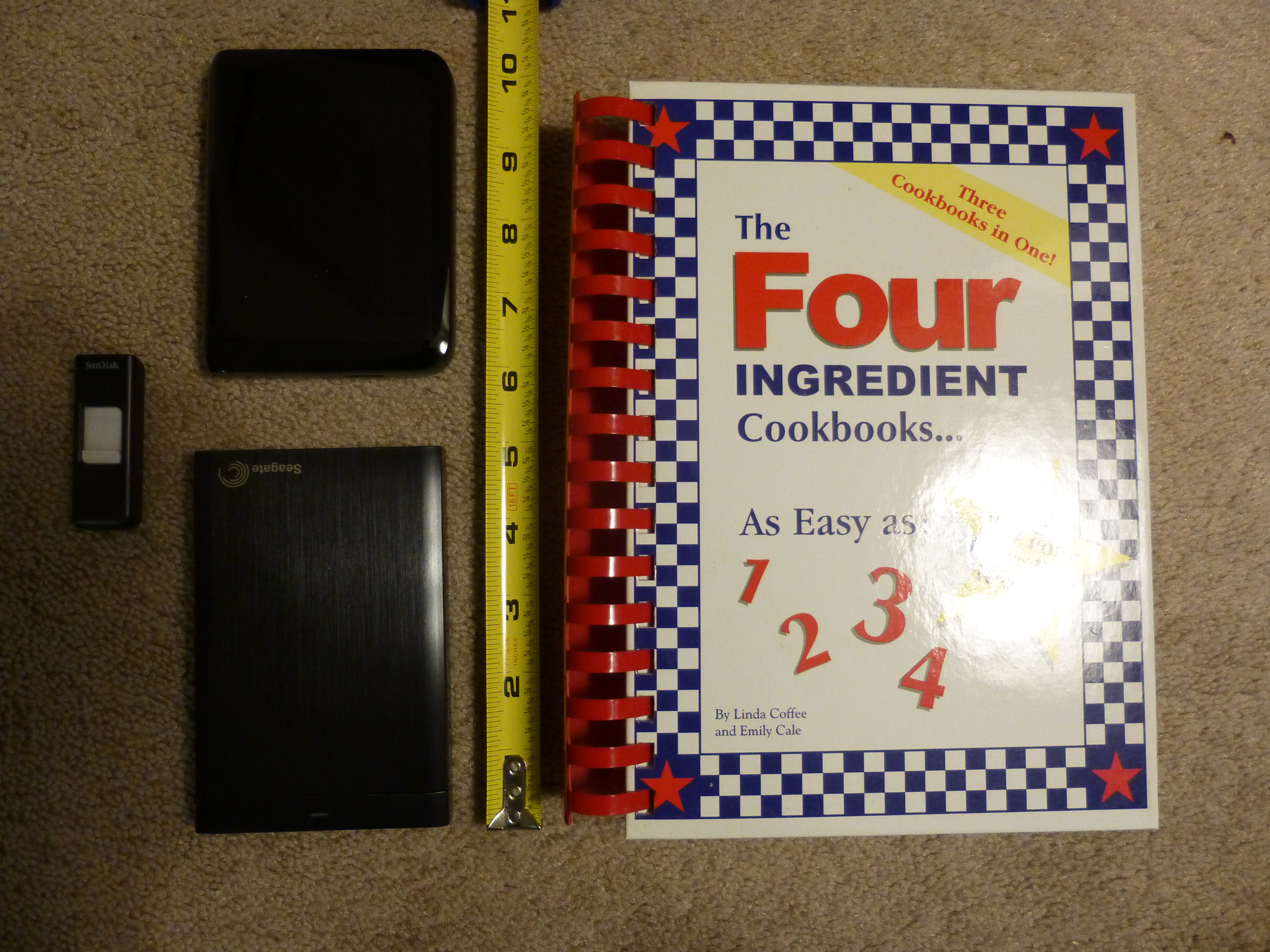
The first HDD I had only had a capacity of 80 gb, half of my first computer’s capacity. Also, in addition to having to be plugged into my computer, it also had to be plugged into a wall socket. And it was somewhat large, about the size of a small to mid-sized phone book or hard cover/text-book, such as the cookbook in the picture below.

16gb Flash Drive at far left, 750 gb Portable HDD upper left, 1 tb HDD lower left, and cook book which was the size of the 80 gb capacity HDD I once had.

16gb Flash Drive at far left, 750 gb Portable HDD upper left, 1 tb HDD lower left, and cook book which was the size of the 80 gb capacity HDD I once had.

Now, there are small portable HDD drives that are about the size of a man’s wallet and some are almost as thin as a smart phone. Some I’ve seen can hold up to 4 terabytes (tb) of data. That’s 4,000 gigabytes (gb), more than the capacity of most computers being sold today, in 2015!

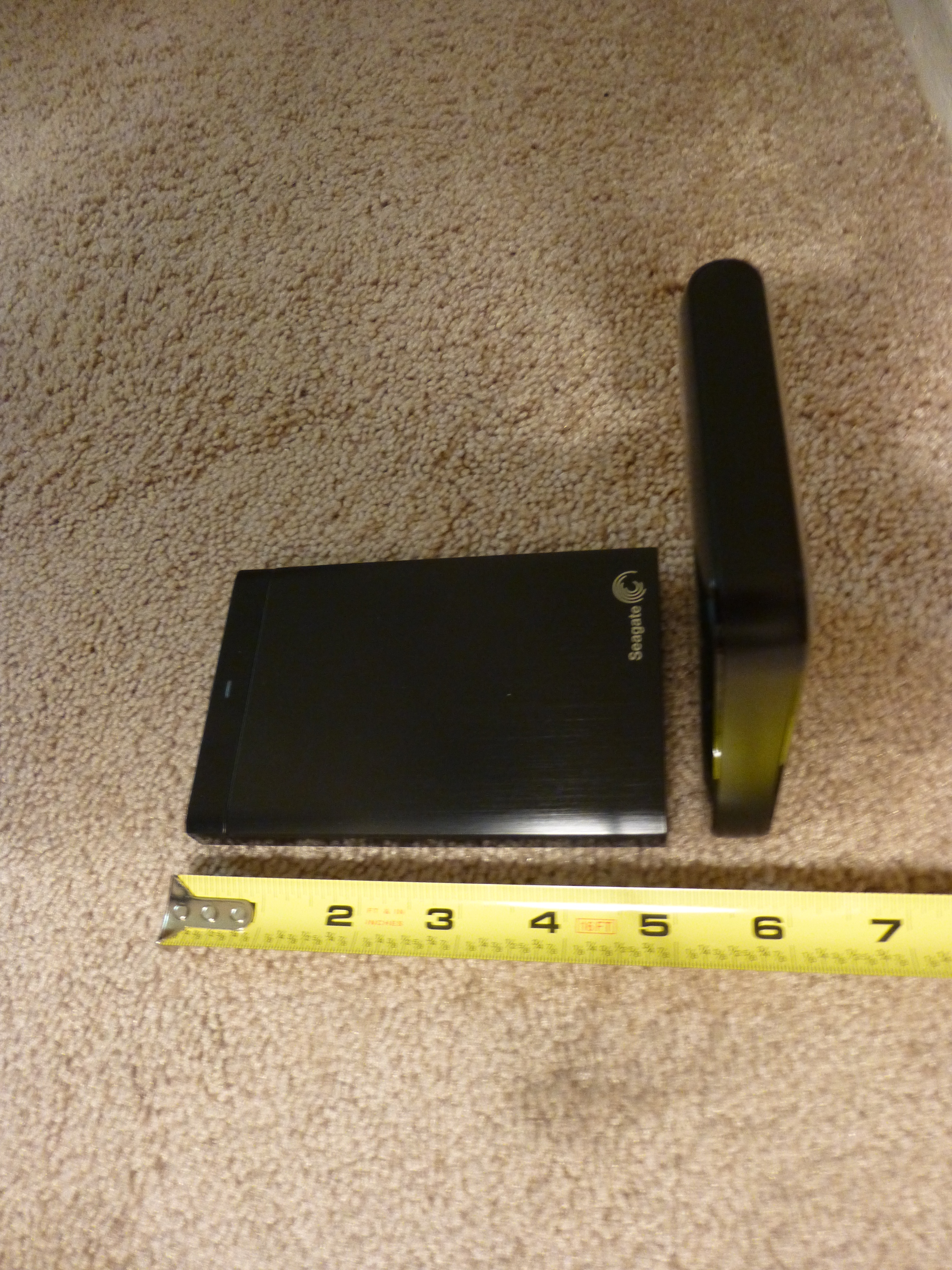
1 tb HDD lying flat on left and 750 gb HDD on it's end at right.

1 tb HDD lying flat on left and 750 gb HDD on it’s end at right.

And they can often be had for well under $200, many 1 tb and under portables are less than $100 with enough capacity to satisfy most users’ needs.

They usually come with their own USB cable and all you do is plug them in. No need for a second plug-in to  a wall socket, either.

Now, many portable HDD’s will have their own backup software, which can often perform continuous backup so long as they are plugged into your computer. This can be very convenient as you won’t have to do periodic backups.

However, if you are like me, you may want to go into folders from time to time, whether to make changes, such as renaming folders or clicking and dragging one sub folder to another parent folder, or to retrieve a picture or document to attach to an e-mail, using the portable HDD software may not be for you.

I tried using the portable HDD software with my first computer, to save time. However, when my first computer went out and I attempted to transfer my data to my new computer, I found that the portable HDD software had created different folders with different names. or actually number and letter designations, and had completely rearranged the stored data, so I had pictures and documents on the same folder, and other things which were originally together, now separated! So, while transferring my data to my new computer was easy, I had to reorganize all my data once it was on the new computer!

So, before using the portable HDD’s backup software, be sure you read all the instructions first, and test it first by viewing the contents and folders on the portable HDD after a backup.

If you are into manual organization of your data files and folders, then you may just want to back up your computer by simply clicking and dragging your user files and folders to the portable HDD once you have it connected to your computer. I do my backups this way and find it convenient, as well as knowing that, if my computer dies, I know exactly what to look for when I transfer my data from my portable HDD to my new computer.

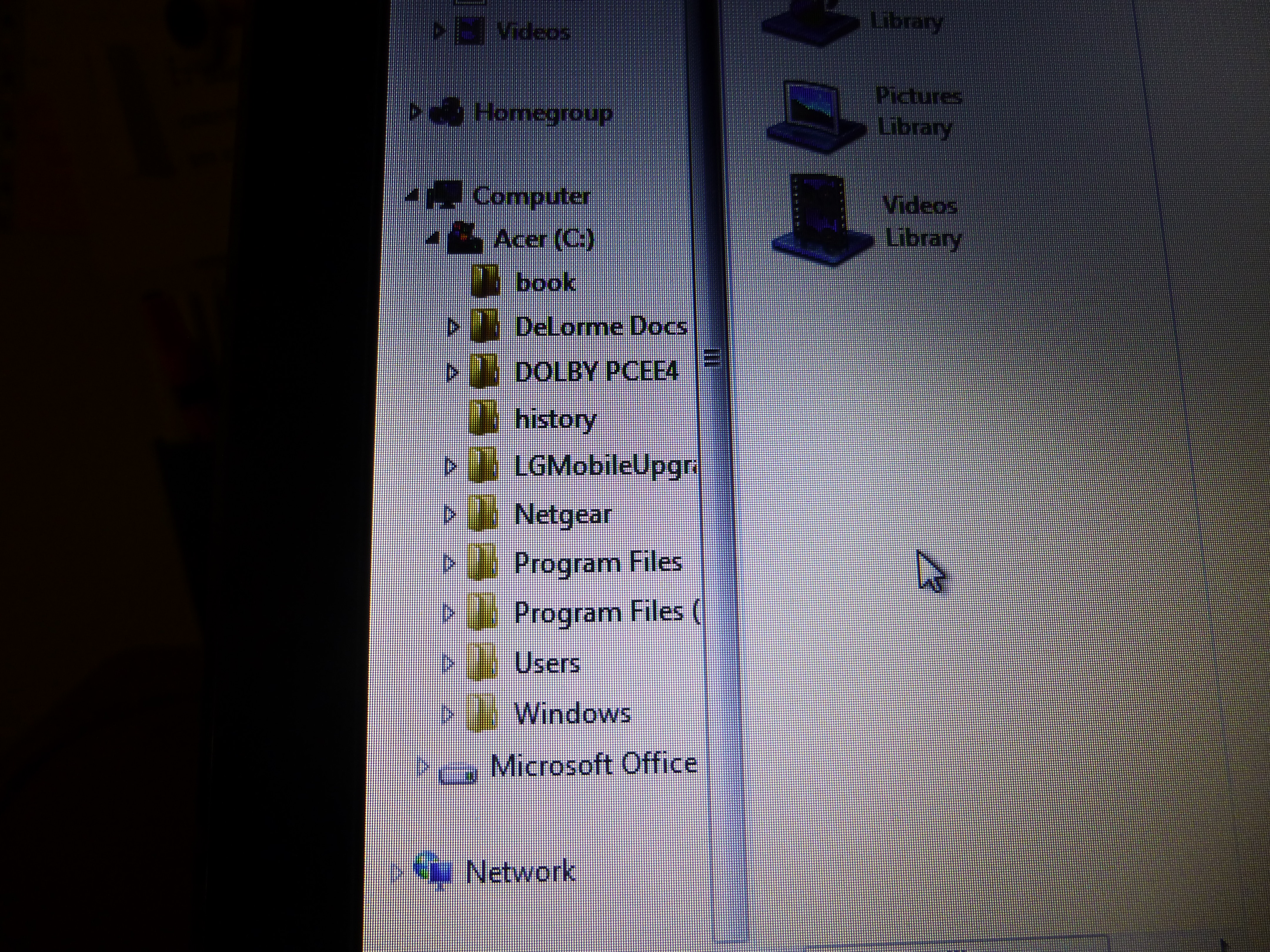
Computer main folders. Click on arrow next to "Users" folder to view sub folders.

Computer main folders. Click on arrow next to “Users” folder to view sub folders.

Also, for those of you who are brand new to backing up your computer, you only need to back up your data files, which should be under your computer name folder (whatever name you gave to your computer when you first got it and set it up.) In the picture below, the computer name folder’s title has been ‘blanked’ out. It is the folder immediately below the “Users” folder and includes sub folders from “Contacts” through “Tracing“. These folders will contain your documents, music, pictures, favorites, and video files, among others. It would be these folders that you would copy to your portable HDD for storage. I also include the “Public” folder below the “Tracing” folder as well for good measure. And, while this applies to Windows PC’s and laptops, this probably can apply to Apple/Macs to a degree as well. 

"Users" folder expanded to view computer's "Name" folder and it's sub folders.

“Users” folder expanded to view computer’s “Name” folder and it’s sub folders.

There’s no need to back up system or other files outside the “Users” file as any new computer you get will already have a more advanced version of these files anyway.

How often to back up your computer? It depends. If you make few changes over time, I would do it once a year at least. If you make lots of changes, then possibly weekly. It’s up to you. I usually do it every 6 months, but sometimes as soon as every 3 months if I’ve added lots of pictures or made a lot of changes in that time. If there’s a point of time in which updating would be a major chore, or a major loss if the data was to be lost, then back up sooner than that.

In any event, if you have a serious data loss you’ll be really glad that you backed up your data.

Happy computing!  And thanks for reading!

If you like what you’ve read here, please let others know of this post, site, and blog! 🙂


Unknown's avatar

Is a Smartphone the Best For You?

My first cell phone, which I got in 1996, was one of those big Motorola flip phones. While it did clip onto my belt, it was big and heavy enough for me to feel its weight as I moved. Also, its battery had a short life and because it was analog, the number could be cloned, and it was, twice.

Thankfully, cell phones quickly improved and the next phone I had was not much larger than what I have now. And, with each progressive phone I’ve had, I’ve gotten more features.

The latest one is an LG Extravert with a slide out miniature keyboard, for easier texting. Now, it can also accommodate a data plan as well, though I don’t have one as I don’t feel the need for one. I don’t know if it is considered to be a true “smart phone”, but if not, it is as close as one could get. It is still as small as my previous phone, however, it was slippery and easy to drop as a result, so I had to get a protective rubber covering for it, as well as a screen protector.

As a result, I couldn’t use a standard flip phone clip-on case. I had to purchase a small Lowepro camera case that clips on to my belt (Lowepro makes the best and most user friendly cases!), and it works with the phone just fine and is still small enough not to feel like an added heavy appendage to my belt.

Recently, I was on a trip, visiting family, and my cousins had smartphones. The were able to see each other as well as talk, and the visual quality was great! The phones looked easy to use, too, and I could see how they could do so much. One of my cousins also used the navigation feature on her phone with no problem. While the car had its own navigation system, the phone’s worked just fine, and we could have been in a Model T, and it wouldn’t have made a difference because my cousin’s phone had its own portable navigation system!

But is a phone that can do everything really for you? Only you can answer that, but, having seen what they can do, and having checked them out in stores, I’ve made my own observations.

Being able to see one another while talking, at least for now, as I understand it, requires a data plan, which costs more money than just a talk and text plan. Readers, If I’m wrong about this as I write, please let me know.

I do know, however, that data plans, at least in the “Paygo” world, of which I am a part and highly recommend, are coming down in price.

And some smart phone class phones are being offered at cheaper prices with some plans.

But, here’s a problem. The phones are getting larger, and some are approaching tablet size. The good thing about this is, you can now find a size that fits your needs.

But, on the plus side of this, while getting larger, the size increase is only one-dimensional. They are getting thinner and are much lighter than those old Motorola phones, so that still means less bulk.

But, they can be more obtrusive and vulnerable to breakage when worn on a belt or put in a pocket. I can see them breaking if they are on a belt or in a front or back pocket when you get into your car. If they are in one of the lower pockets on a pair of cargo pants, or in someone’s purse, handbag, or day pack, they should survive. But they are not as convenient to carry as my phone still is. And recently, there was an issue with a recently released phone that bent too easily.

So, while true smartphones phones now have more and better features, I’m satisfied with what I have. Of course, if you are in the market for a smart phone, do check them out, as there are so many kinds, from Androids to Galaxies, and others.

Of course, bear in mind that new and more advanced phones are coming out all the time now, and plans are constantly evolving, so, if you can’t quite find what you really want in a phone, just give it some time before buying. Sooner or later, the phone, and plan, that you want will be here.

If you like what you’ve read here, please let others know of this post, blog, and site.

And thanks for reading!  🙂


*** Update! In January, 2015 I did get my first smart phone! An LG Optimus Zone 2. To see what transpired and what I have to say about it, see my post, Again, Before Jumping In, Do Your Research! (Or how I got a $149 phone for just $49!)

Unknown's avatar

Get Rid of that E-Mail Clutter, Too!

Awhile back, I published a post called “Don’t be a Hoarder! or Do You Really need All That Stuff?“, where I talked about getting rid of items that you no longer need. Well, many people, myself included, have the same problem with their e-mail in boxes and folders, holding many saved e-mails and folders that they no longer need.

Well, this isn’t as big a physical problem as the hoarding of physical items, as all of the e-mails are on the computer, which, thankfully, doesn’t get bigger and bigger with the more e-mails you save.

But, depending on how much unneeded e-mails you have, it could be infringing on the amount of storage space your e-mail account provides, and could also cause you to wade through many more e-mails to find the one you want than is necessary.

So, it’s a good idea to go through your e-mail every so often and delete those e-mails and folders you no longer need, as well as checking to see if you can better organize the ones you do decide to keep.

But, this may not be all. You may be getting e-mails from sources that you no longer want to be subscribed to. And some of these may be “3rd party” subscriptions, lists that you were automatically subscribed to when you subscribed to that one list you wanted to be on. It happens all the time. You may have signed up to receive e-mails from, say, a crafts website, and, as a result, the website automatically subscribes you to a crafts supply website, a particular craft store’s website, and maybe others as well. And you may decide you don’t want all those extra e-mails that just keep on coming.

So, you need to unsubscribe from those lists. Fortunately, most e-mails from a subscription list will have an “unsubscribe” link in their e-mails, usually at or near the bottom. Just click on the link and follow the instructions to unsubscribe, but beware, some sites will have additional ads or links along the way that may look like they are part of the unsubscribe process.

You’ll find that cleaning your e-mail of unwanted e-mails and folders will keep your e-mail account easier to manage and navigate.

Good Luck and happy computing!

If you like what you’ve read here, please let others know of this post, blog, and site!

And thanks for reading!  🙂


Unknown's avatar

Another Craigslist Tip

If you’re posting ads on Craigslist, here’s another tip for you. After a time, when you log into your account after your ad has been posted for 48 hours, it will show that it can be renewed.

If your ad is in one of the more “general” categories, such as “small biz ads”, then you should have no trouble renewing it. It probably won’t be automatically flagged due to “overposting”.

But some categories have much fewer ads, resulting in your ad being on the first page for a longer period of time, even longer than 48 hours, so, even if you go into your account and your ad is showing to be renewable, it may still get flagged by Craigslist due to overposting if you click on “renew” to renew your ad.

So, if your ad is in one of these “sparsely populated” categories, your best bet to avoid getting your ad flagged is to wait until your ad is no longer on the first page when you go into that category.

This happened to me when I had my ad for resume services under “write/ed/tr8”. I would go into my account and my ad would show that it could be renewed, so I clicked on “renew” and the ad would get flagged. I finally checked by going into the “write/ed/tr8” category on Craigslist, and saw that my previous ad was still on that first page that came up, even though it had been posted more than 48 hours before.

Worried that your ad won’t be seen if you don’t renew? Go and check to see if your previous ad is still on the first page. if so, then you don’t need to worry about renewing.

Just check on the category your ad is in after the 48 hour period has passed. If it’s no longer on the first page, then try renewing. If it doesn’t get flagged, then you’re ok.

Hope this helps and good luck posting your ads on Craigslist!

If you like what you’ve read here, then let others know of this post, site, and blog!

And thanks for reading!  🙂

Unknown's avatar

How to Organize Your E-Mail Folders Without Getting Scatterbrained!

The easiest way to organize your e-mail is to simply read your e-mails then delete them. Of course, for many, if not most of us, this is just not practical, so we organize our e-mail by creating folders, and this is a good idea.

But, how you organize and name the folders can have an impact as to how easily you can find any particular old e-mail.

Like most people, when I had my first e-mail account, I would have folders created for family members, topics, subscriptions, etc. Examples of folder names that I used would be for various relatives such as, “Uncle John & Aunt Kate”, cousin “Brad”, etc. Then there would be folders for friends like “Terry”, “Bob”, “Cheryl”, then other folders for different things like, “ABC Magazine”, “BRX Co.”, “My Employer”, “CMS Insurance”, “IFLY Airways”, “Annual Car Show”, and “Park Fair 2013”.

Nothing wrong with these folder names, but, it can get complicated with the more folders you add. Let’s look at how they would be arranged in most e-mail systems below:

FOLDERS:

ABC Magazine

Annual Car Show

BRX

Brad

Bob

CMS Insurance

Cheryl

IFLY Airways

My Employer

Park Fair 2013

Uncle John & Aunt Kate

You’ll notice that friends, family, and business and events folders are split among each other. Now, this is a small number of folders, so it wouldn’t be much of a problem. But if you have lot’s of family members, friends, and businesses and events that you communicate with or receive e-mails from, this can get complicated.

In this type of organizing, your cousin Brad’s folder will be far from your folder for Uncle John & Aunt Kate, and if you’re looking for an old e-mail that involved you and both of them, those two folders won’t be together. If you have to look in several family members’ folders, this could become a real chore if they’re scattered among your other folders.

Now, some e-mail systems allow you to create sub-folders, that is, a folder within a folder. If your system is like this, you can create a “Family” folder instead, then within this “Family” folder, you create folders for your family members. See the example below:

Family

Brad

Uncle John & Aunt Kate

As you can see, this groups all folders with a similar relationship to you, together. Believe me, this really helps if you have lots of folders.

But what if your e-mail system doesn’t allow creation of sub-folders?

Yes, I do have this problem and I solved it. The best way is to use a category word, such as “Family”, or “Friends” in front of the folder name. I abbreviate these category names to make the full folder names shorter. Of course, these are abbreviations that are mostly made up, but they are easier for me to understand. You may have your own abbreviations that only you can understand, and that’s fine, as you would be the only one who would need to know in most cases. I use “B” for business, “Fm” for family members, “Fr” for friends, “Ent” for entertainment or events, “Tr” for travel or travel businesses, “”Fx” for various information sources, and “Ins” for insurance companies. You can always use different groupings, like placing insurance under business, or separating cousins from other family members as you wish. See the example below:

FOLDERS:

B ABC Magazine

B BRX

B My Employer

Ent Annual Car Show

Ent Park Fair 2013

Fm Brad

Fm Uncle John & Aunt Kate

Fr Bob

Fr Cheryl

Ins CMS Insurance

Tr IFLY Airways

As you can see, this will still keep related folders together. Notice that by using the abbreviations “Fm” and “Fr” this keeps the family and friends folders next to each other. By the manipulation of the abbreviations you use, you can keep groups of folders in close proximity to one another.

If you get to have 40, 50, 100, or more folders, this can be a really big help!

Hope this makes your e-mail life easier!

If you like what you’ve read here, please let others know of this post, blog, and website, so they, too, can make their e-mail life, and other things, easier too!

Thanks for reading! 🙂

Unknown's avatar

Want to SEE who you’re talking to? Try Skype!

Sure, you have access to phones everywhere now, but sometimes you just want to see who you’re talking to!  But if they’re far away or you just cannot get to see them right now, what do you do?

Now, with better computers, laptops and tablets and, I believe, even smartphones, you can download programs that allow you to see who you’re talking to. I have used another messenger service in the past, but it was sometimes unreliable and not so easy to use. This was a few years ago, so improvements may have been made since then.

The one I use and like now, is Skype.

Why Skype?

1. Skype is easy to find and install. All I had to do was google Skype and found the website. It was very easy to set up my account, install the software, and add my contacts. And also easy to use, which may be why it is so popular.

2. Skype is reliable. So far, in my experience, Skype has been very reliable. I don’t believe it has ever crashed on me and the settings are easy to use. I like the fact that you can check you connection, webcam, speakers, and microphone performance as well.

3. Skype updates automatically and with little hassle. Skype updates automatically and these updates have never caused any problems on my computer.

4. Quality of Skype calls is usually quite good. The few problems I’ve had have been due to equipment problems rather than Skype itself.

5. Perhaps best of all, as of this writing, a basic Skype account is free to set up and use!

So, how is a Skype call different? The fact that you can see who you’re talking to, which is really great, when you stop to think about it! Of course, Skype and similar programs have been around for a while now, but I’m still not complacent about Skype. If you skype with someone who is far away, such as family members or friends, seeing them, and they seeing you, is the next best thing to actually visiting them!

A program like Skype also allows you to show things to those you’re speaking with, and vice versa. You just got the latest smartphone and want to show your friend across the country what it looks like. With Skype, you can! If you’re “skyping” using a portable device with WiFi or an extra long Ethernet (Cat-5E) cable, you can show the person you’re skyping with, your new home or that great sunset from your balcony!

Now, like other messenger programs of this type, Skype does require both parties to have Skype accounts, but as I mentioned above, setting up a basic Skype account is easy and free. So getting those family and friends with internet access to sign up can be easy to do.

So, even if you now live far away from friends and family, there’s no excuse for not keeping in touch! Get a Skype account and get your friends and loved ones to do the same! The “virtual visiting” effect is well worth it!

If you like what you’ve read here, please let others know of this post, blog, and website! Thanks for reading! 🙂